Install Visitor Management System
Prepare SQL Database Server
Install MSSQL Database or PostgreSQL Database on any computer in the network. Take note of IP address
of the Database Server.
Create a database called EVMS in the database server. (IMPORTANT)
The username dedicate for the Visitor Management System should have rights to create tables and modify
tables in the database.
All tables required for the Visitor Management System will be created automatically on the first run of the
Visitor Management System.
How to install VMS SQL Version
Run the installer MyVMSSetupPSQL

Do not plug in the card reader until after the installation.
The card reader drivers will be installed automatically with the VMS Software.
Unzip downloaded files to a folder.
Double click on the file : MyVMSSetupSQL
Follow the instructions to install,
When the below screen appears during the installation click the Apply button and close the window

Running the Visitor Management System
Before running the Visitor Management System, a database connection will have to be set. The connection
dialog box will pop up on the first run of the Visitor Management System. Populate the dialog box with the
settings for the database server. Please see example below for MSSQL and PostgreSQL servers.
Setting database connection for Visitor Management System
Provider : SQL Server from the Provider drop down list for MSSQL.
PostgreSQL from the Provider drop down list for PostgreSQL Server.
Enter Username and password for Database Access
Server : MSSQL - with the IP Address of the PC with SQL Server Installed followed by the Database
Instance Name. Example 192.168.0.1\SQLEXPRESS ‘SQLEXPRESS’ being the instance name.
PostgreSQL use the IP address of database server.
Port : MSSQL - can be left as 0 for MSSQL.
PostgreSQL - the port number has to follow the one given at Database Setup
(default is port 5432).


Example of MSSQL Setting Example of PostgreSQL Setting
Save the settings and restart the Visitor Management Software.
When prompted for username and password, use below default usernames
The default admin login : admin
No password
The default guard/front desk login : user1
No password
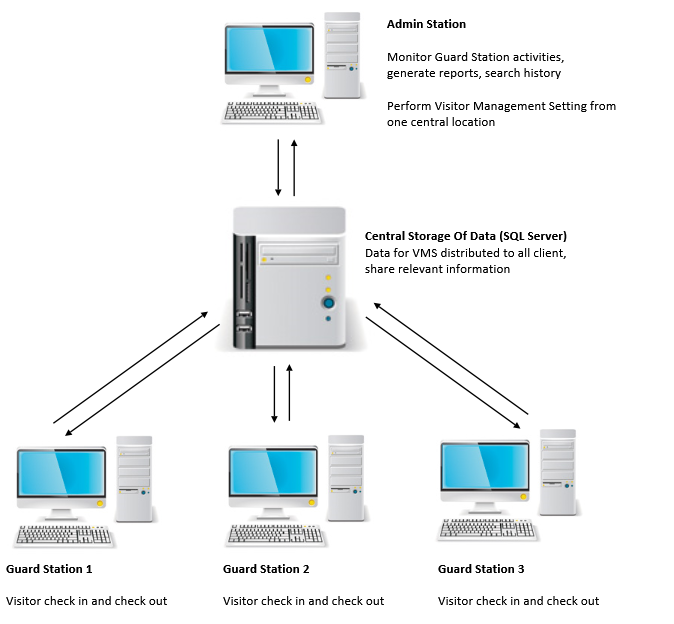
Network Model
Multiple station can be linked to a central database to share data. Additional stations can be added to become
registration or monitoring / admin stations.