Send A Visit Form
If the host does not have the details of the visitor, the host may send a Visit Form
to their visitor for the visitor to enter their particulars. A special web link can be sent
to the visitor using WhatsApp or Telegram applications.

1) Select Date Of Visit
Select the start date of the visit for the visitor
2) Enter Some Reference Information
Enter a reference for the visitor to know who the Web Form is from
3) Send the Web Form Link By WhatsApp
Once the information has been entered, click the WhatsApp icon to generate
the Web Form Link and send the link by WhatsApp. The WhatsApp application will open
for the host to select the recipient to send the link to.
OR
4) Send the Web Form Link By Telegram
Once the information has been entered, click the Telegram icon to generate
the Web Form Link and send the link by Telegram. The Telegram application will open
for the host to select the recipient to send the link to.
The Web Form Link will be similar to the image below.
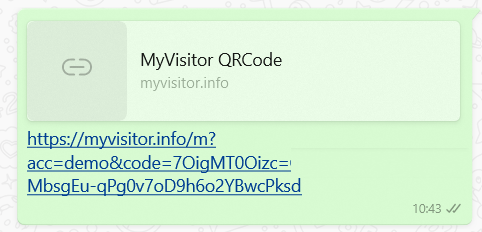
Upon receiving the link, the Visitor will need to click on the link
to open the Visit Web Form
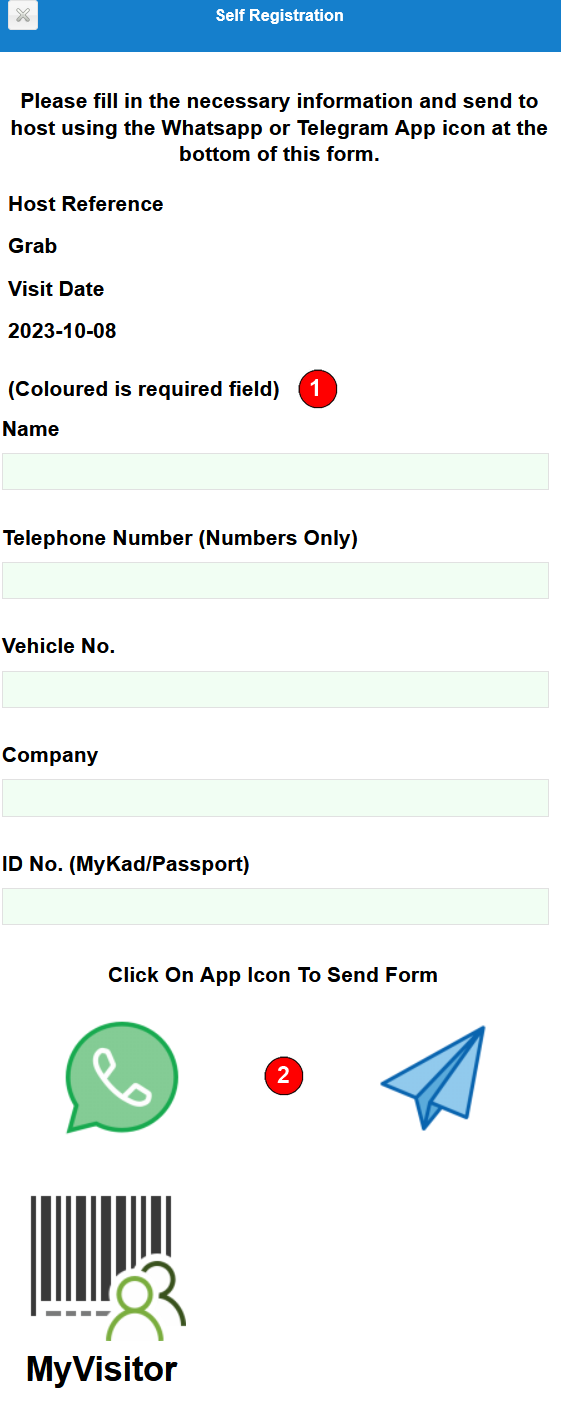
1) Visitor Fill Out Their Visit Form
The visitor will need to fill in all the required fields colored green and
click the (2) WhatsApp or Telegram icon to send the generated link for the host.
Host Will Receive Special Link With Visitor Particulars
The host will receive the visitor's information via a special link similar to the link shown below
The host will need to click on the received link. This will open the MyVisitor QR Code Web Application
on their device. The host may need to login to their account. Once logged in, the Create QRCode For Visitor
form will be displayed with the visitor particulars pre-filled. Proceed to enter date limits, day limits, type of entry
and issue QR Code to visitor.